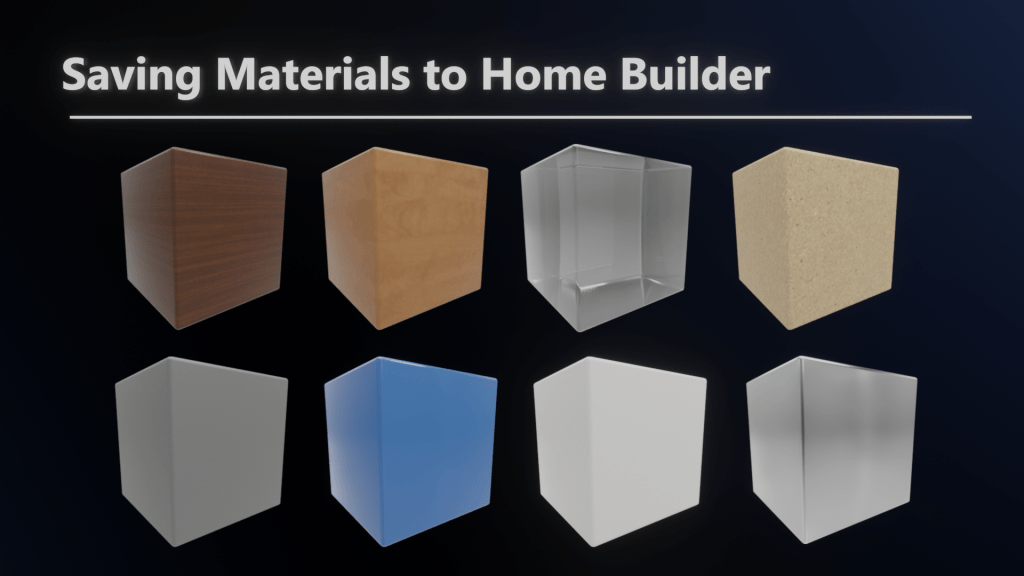
You can save materials to the Home Builder Library to extend the available materials. The material library can be found in the Library UI. If you want to change the materials that are assigned to the assets in the home builder library you can select the material on the left then click the pointer that you want to assign the material to.


How to Create Materials
This is where your knowledge of Blender comes in handy. The more you know about the Blender Shader Editor the better you will be at creating materials. There are a lot of resources online that will show you how to create materials in Blender.

How to Save Assets to the Library
The process to save a material to the library is very simple. In the Library UI select the Assets Tab, select the material tab on the left, and click Save Asset to Library in the commands dropdown.

The active material that is assigned to the active object will be saved to the library.

How to Add a New Category
These assets are stored on your computer. You can access the location by selecting Open Browser Window in the commands drop down. You can not only add folders here, but you can organize the asset however you want.

There are only two rules:
- Do not remove the default sample assets.
- When moving assets you must move the blend file that contains the asset along with the image with the same name as the blend file.

 Home Builder
Leave a comment